Log in to your DMS
In the Content/Baku List area
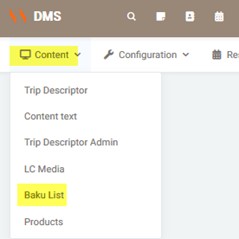
¶ Create a New Baku
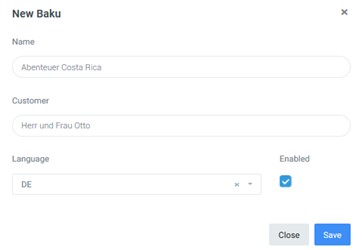
Click on Create Baku

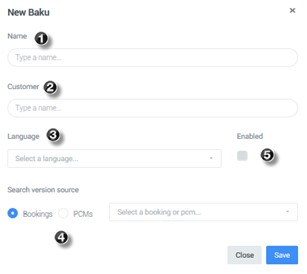
1. Enter the name of the Baku
The idea is to have a selection of titles under 50 characters including spaces, so the salesperson can choose the one that best summarizes the client’s request. If none fit, a new one can be created and saved in the database.
Example:
- Costa Rica Bespoke
- Highlights of Costa Rica
- Costa Rica Off the Beaten Tracks
- Costa Rica massgeschneidert
If it’s a PCM, enter the exact PCM name, not a made-up name. The maximum space for the Baku name is 75 characters.
2. Enter the clients’ names:
This is what appears prominently on the cover. It’s like the recipient of a letter, for example:
- Family Küng
- Daniel Küng
- Mr. & Mrs. Brown
- Gross Party
This is not stored in the content database, but entered for each itinerary created. Maximum 75 characters for client names.
3. Choose the language in which the Baku will be shown to the wholesaler: Spanish, English, or German.
4. Add the Booking or PCM name.
¶ Choose Cover, USP, and Banner
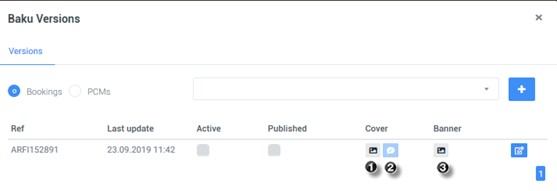
1. Cover
Ideally, photos suitable for the Baku cover should already be chosen in LC Media (see the [Cover and Banner Photo Upload Guide]). The photo names and tags should indicate where or what they are, to choose the right ones that represent the locations or highlights of the quotation. Preselected and configured photos will appear first.
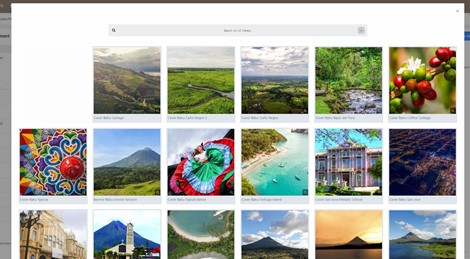
If not, they can be chosen at the moment.
Click on the arrow at the end of the “Search on LC Media” bar, then check “Show all.”

Click on the chosen photos before selecting.
2. USP
USPs can be added at the same time as the cover photo.
USP texts can also be preloaded in the Content Text area (see [USP Text Upload Guide]).
USPs cannot be chosen without first selecting cover photos.
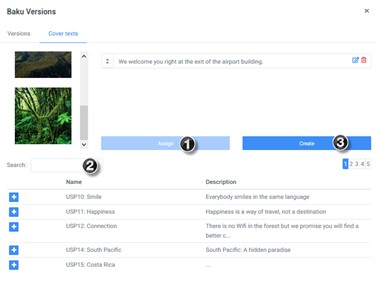
- If USP texts were already uploaded in Content Text, click Assign to find them.
- Use the search tool to find by name or text.
- Or create a new USP text, which will then be available for new Bakus.
¶ Banner
Choose the photo that will appear in the Baku banner (only one).
For a selection of high-quality photos suitable for banners, see the [Cover and Banner Photo Upload Guide].
¶ Edit the Baku
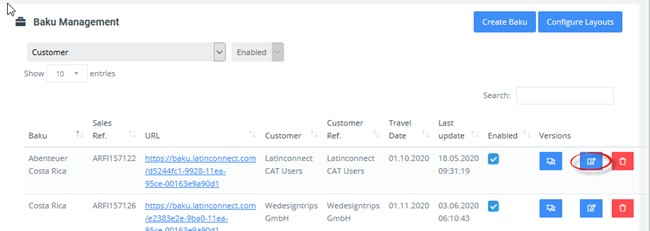
Once a Baku is created, in the Edit cell you can change the Baku name, client name, and language.
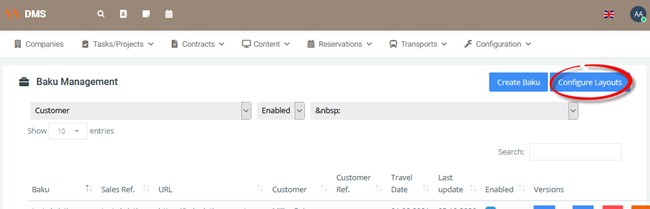
¶ Configure Layouts
This is used to configure layouts for different wholesalers. The dropdown shows which wholesalers already have a layout assigned. If a client doesn’t yet have one, request it from Adriana Arroyo or Marketing, providing the wholesaler’s name, website, and ideally the logo in SVG format.
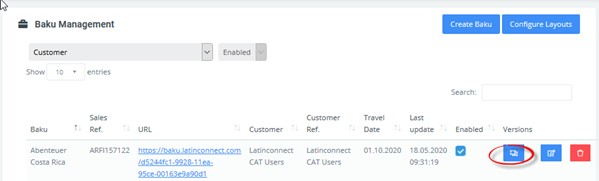
¶ Versions
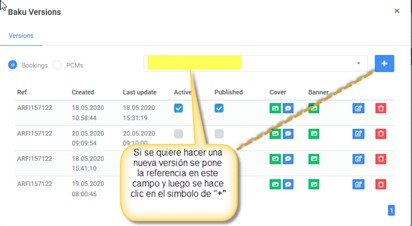
In this window you can create new versions of a Baku, for example if the base Booking or PCM was modified. You can identify which version is active and which one is currently shown under the client link. You can choose cover photos, USP messages, and the banner photo. Old versions can be deleted.
¶ Cover Page
Clicking the Version button takes you to the Baku cover page.
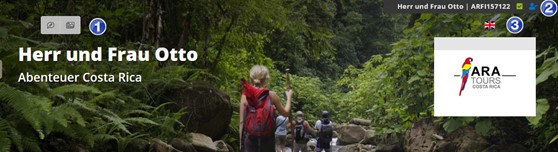
1. You can go back to reorder cover phrases and photos. Make sure chosen phrases display correctly.
2. On the cover page (top right) you can see: client name, ARFI, whether the Baku is active, and whether it’s published (meaning the client link works). It is recommended to publish only once the Baku is 100% complete.
3. Through the flags, you can switch between the DMS language and the client-facing Baku language. A Baku can be created in one language and converted to another for the client, but all fields must be available in both languages. Carefully review after converting.
¶ Overview
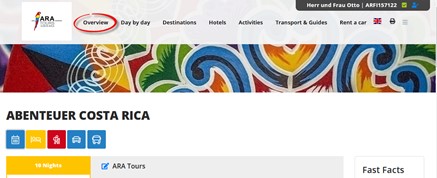
You will see the full list of suppliers and products from the Booking or PCM, according to service type and status set in the configuration area.
¶ Edit Box
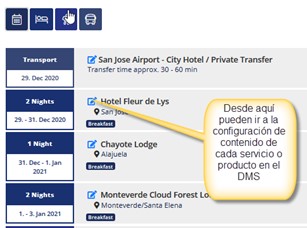
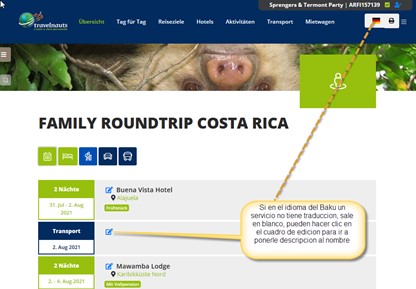
Clicking on the edit box in the Overview:
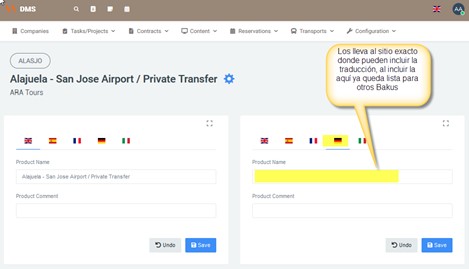
You can configure that service further:
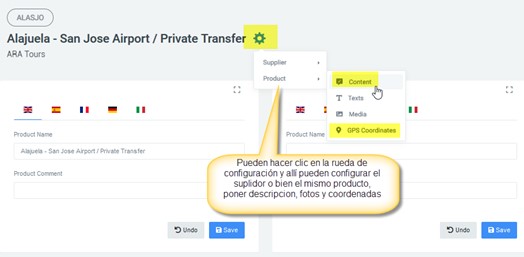
If it’s a service/product not in Latinconnect, you must add minimum content (supplier description, room category, package/activity description, GPS coordinates, photos). These are product texts and can be entered directly from here. The TP service code is shown above, and the supplier below.
¶ Day by Day
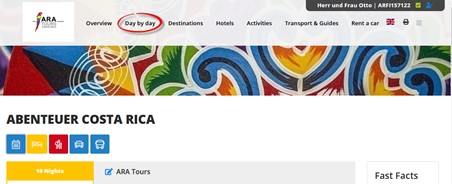
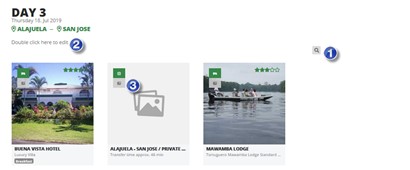
This section details services by day, showing itinerary texts created specifically for Baku (not in Latinconnect). It helps clients understand their day-to-day itinerary.
¶ Itinerary Texts
You can prepare various texts for free days (when clients stay in a location without a program). Prepare 3 base texts per location, from which the seller can choose:
- Free Day 1: no optional tours, just natural and cultural highlights.
- Free Day 2: include significant optional tours, note ARA Xperience if available.
- Free Day 3: other activities in/around the location once typical ones are done.
Additional niche texts (birding, active, hiking, luxury, etc.) can be created and tagged.
¶ What’s shown in Day by Day

- Shows day count, specific date, and visited locations.
- All included services/products (with photos), transfers, activities.
- Hotels show check-in date and nights reserved (not check-out).
- Breakfast shows starting on the first hotel day (though actually the next morning).
- Car rental: additional services/amenities are shown. Drop-off is shown if added in Booking/PCM (always add drop-off to clarify).
- Optional services are marked with a flag.
- Non-Latinconnect services appear without photos—you must assign photos from LC Media.
¶ Destinations

Here you will see the descriptions of the locations for all services in the ARFI or base PCM.
What you can do here:


- Change, select, upload, and/or reorder Destination photos.
- Change or select the main Destination photo.
- Select, edit, or add a new Destination description from scratch.
Destinations already in Latinconnect will display with their description and photos.
¶ Hotels

Here you will see descriptions of all lodging services in the ARFI or base PCM.
If the hotel is part of Latinconnect, everything should already be correct: hotel name, description, hotel amenities, room category name, room category description, room amenities, and photos.
What you can do here (same as Destinations):
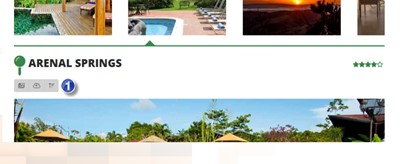
-
Change, select, upload, and/or reorder hotel photos.
1.1. If the hotel is in Latinconnect, photos will load automatically.
1.2. If not, photos won’t appear—you can upload/select them here. They will be saved in the DMS and available in future Bakus.
1.3. From the Overview, click the edit box next to the hotel/service name (with no photos) to edit its DMS entry. Here you can add coordinates for the map (see [Guide for Adding DMS Content for Services Outside LC]).
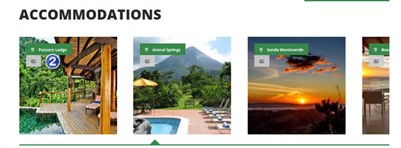
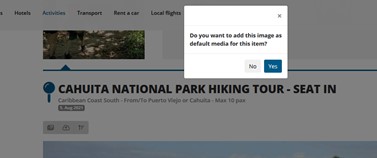
-
Change or select the main Hotel photo.
2.1. If in Latinconnect, it will load automatically.
2.2. If not, no photo will appear—you can select one here, and it will be saved for future Bakus.
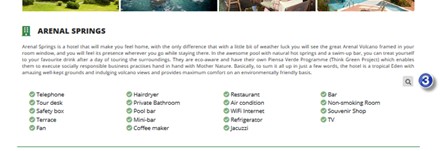
-
Select, edit, or add a Hotel description from scratch.
3.1. If the hotel is in Latinconnect, the short description will load automatically.
3.2. If you add a new description for a hotel not in Latinconnect, it will be saved in that Baku and in the DMS, and appear in future Bakus. The system will automatically assign the supplier and the text category Baku Supplier Description.
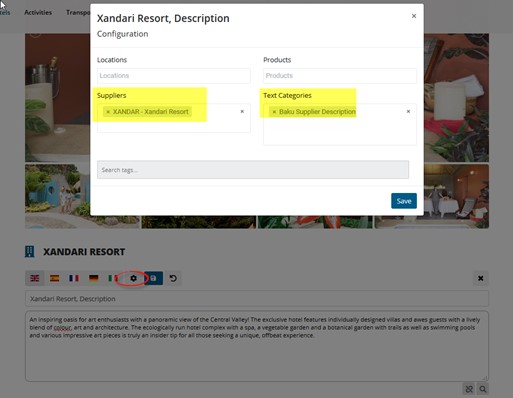
Supplier amenities come from Tourplan.
-
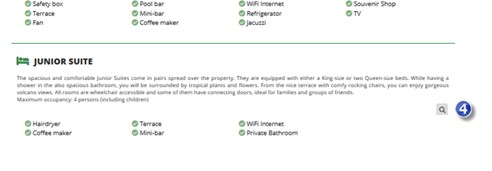
Select, edit, or add a Room Description from scratch.
4.1. If the room is in Latinconnect, its short description loads automatically.
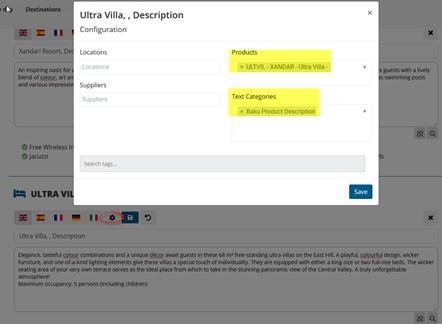
4.2. If not, a new description can be added in the Baku—it will be saved in the DMS for that room and appear in future Bakus. The system will automatically assign the product and the text category Baku Product Description.
¶ Activities
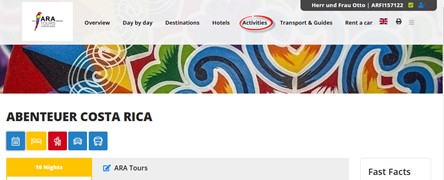
Here you will see the short descriptions of all excursions in FIT Bookings or the base PCM. If the excursion is part of Latinconnect, all details should be correct: excursion name, description, additional info, included services, and photos.
What you can do here (same as Hotels):
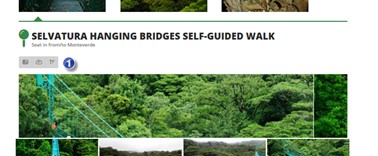
-
Change, select, upload, and/or reorder excursion photos.
1.1. If in Latinconnect, photos load automatically.
1.2. If not, photos won’t appear—you can upload them here, and they will be available for other Bakus.
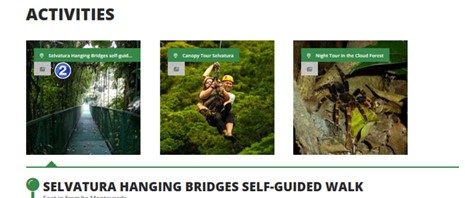
-
Change or select the main excursion photo.
2.1. If in Latinconnect, it loads automatically.
2.2. If not, no photo will appear—you can select one here, and it will be saved for future Bakus.
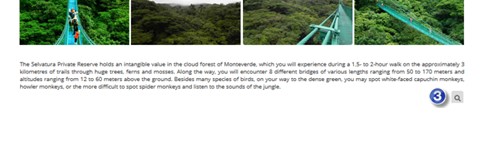
-
Select, edit, or add an excursion description from scratch.
3.1. If in Latinconnect, the short description loads automatically.
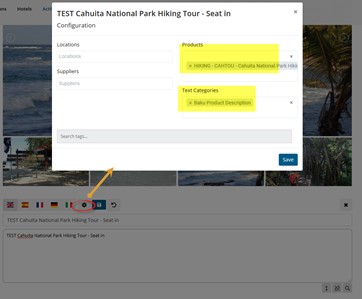
3.2. If not, a new description can be added—it will be saved in that Baku and the DMS, and appear in future Bakus. The system assigns the product under Products and the text category Baku Product Description.
¶ Transfers
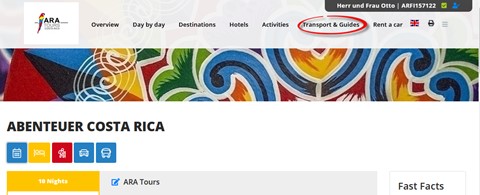
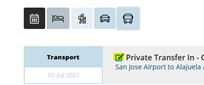
This section lists all ground transportation services included in the Booking or base PCM. Normally, no manual editing is needed. If necessary, use the pencil (edit) icon to make changes in different languages.
¶ Rent a Car
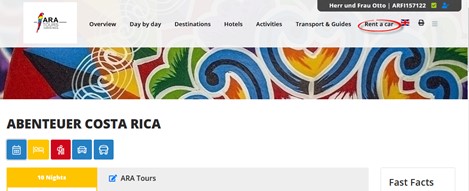
This section shows rental car information included in the ARFI or base PCM.
- Includes an intro recommending car rental as a way to travel around the country.
- Then supplier photos from Latinconnect.
- Then details for each car category.
- Finally, descriptions of additional services (e.g., insurance).
¶ Flights

This section shows airline information included in the ARFI or base PCM.
- Supplier description: a short intro about the airline (base content pending).
- Supplier photos from Latinconnect.
- Flight-specific details.
Pending content can be added by double-clicking the description area, adding a title and description, translating into 3 languages, and assigning the text category Baku Supplier or Product Description with a key. Once done, it will appear by default in future Bakus.
¶ Optionals

This section only appears if there are optional services in the ARFI or base PCM.
First, the icons of optional categories appear (hotels, excursions, or rent a car).

The same content as in Hotels, Excursions, or Rent a Car will appear. If missing, the same texts must be added (see detailed description in Hotels and Excursions).
¶ Map

The map shows all hotel and excursion icons, both included and optional, with their coordinates.
- Left-click removes a flag.
- On the left, the itinerary routes appear (start, stops, destination).
- The info icon shows the supplier or product short description.
For more details, see the Map Configuration Guide.
¶ Wholesaler View of the Baku
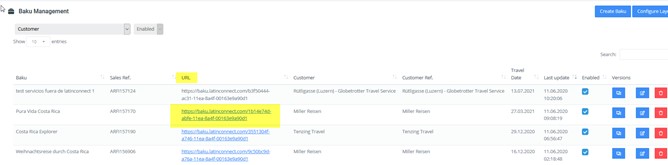
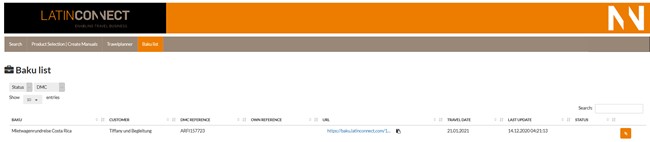
The wholesaler view is accessed by clicking the Baku link in the list. Only links in blue have been published (via the Version icon). Always ensure the published version is the current one for client communication.
This view does not include editing fields—it lets you check that everything looks correct.

In the Overview, the wholesaler can upload documents (price list, general terms, marketing material, etc.) via drag & drop. They can also print the Day by Day section as PDF.
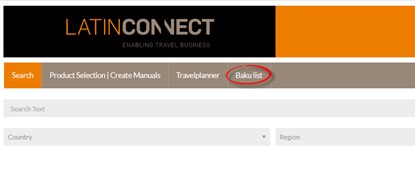
In Latinconnect, there is a section where the wholesaler can view their Bakus.