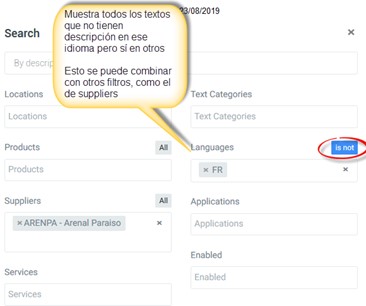
You enter the DMS in the Content/Content text section.
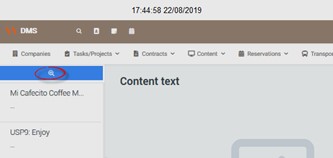
Keep in mind:
- In this text searcher, each field is individual. This means that if you include a Supplier in Products, it won’t only display the products linked to that supplier.
- Only products or suppliers that already have a text included will appear in the results. If there is no text, you need to create it.
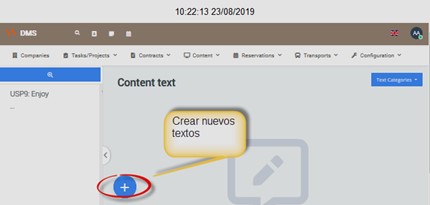
- Texts for suppliers or products that are hidden in Tourplan (with the Deleted check active) are not synchronized.
¶ Searching for Products of a Supplier
If you want to search for all the products of a supplier, you must do it this way: include the supplier and in the Products field select All.
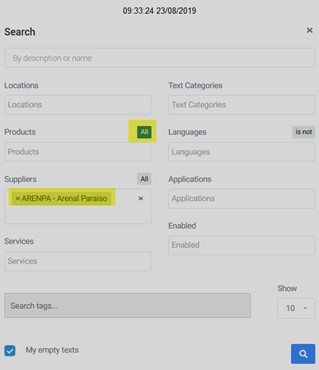
¶ Searching for a Specific Product
Since the filter tabs are individual, the Products tab contains the supplier code.
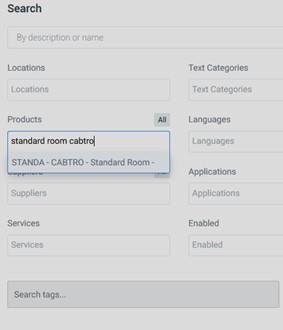
So, if you want to search for a specific product, for example, a room, the recommendation is to include both the product code and the supplier code.
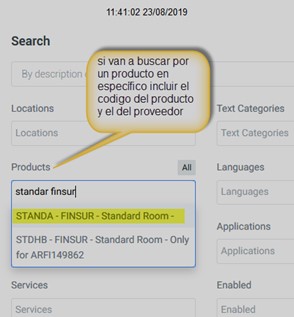
You can enter the product name, but for the supplier you must use the code, not the name.
Example:
¶ Searching for Suppliers
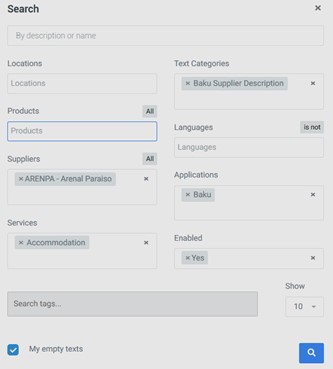
You can search by supplier code or name, and combine with other filters, for example:
¶ Searching for Locations
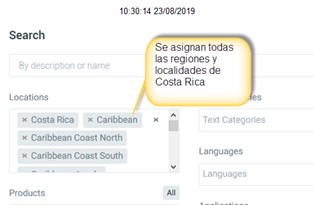
It’s important to highlight the use of the arrows, which serve to include everything related hierarchically (descending) to the selected criterion.
Example: If you select the arrow next to Costa Rica:
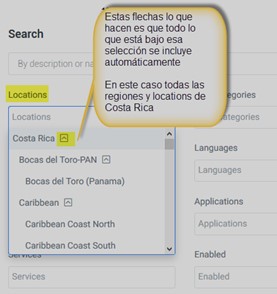
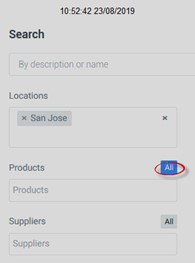
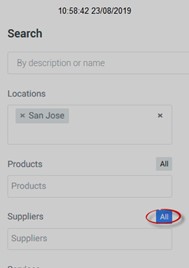
The All tabs also apply to searching for locations.
For example, if you wanted to see all the texts of all the products in a specific location, you would filter like this:
And if you wanted to see all the texts of all the suppliers in a specific location:
¶ Texts Without Description
If in the search you leave the checkbox My empty texts selected,
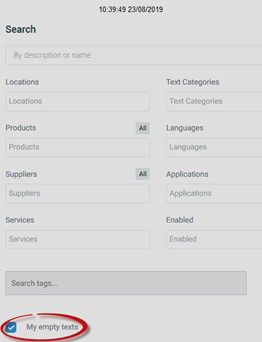
it will always display in the left column the texts that don’t have a description and belong to your user. Texts without description from other users will not appear, only yours.
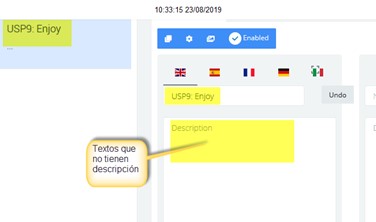
If you don’t want this, simply uncheck that box.
¶ By Language
If you check the is not box, it searches for texts that do not have a description in that language, and this can be combined with other tabs.