¶ GUIDE FOR UPLOADING MULTIMEDIA MATERIAL TO LC MEDIA IN THE DMS
¶ Image Quality
- Ideal: 300 dpi
- Acceptable: more than 150 dpi
- Minimum: 72 dpi
- Minimum size: 770x433 pixels, recommended 1920x1080 pixels, no maximum
¶ Multimedia in the DMS via Content/LC Media
To access LC Media in the DMS, expand the little arrow next to Content and click on LC Media.
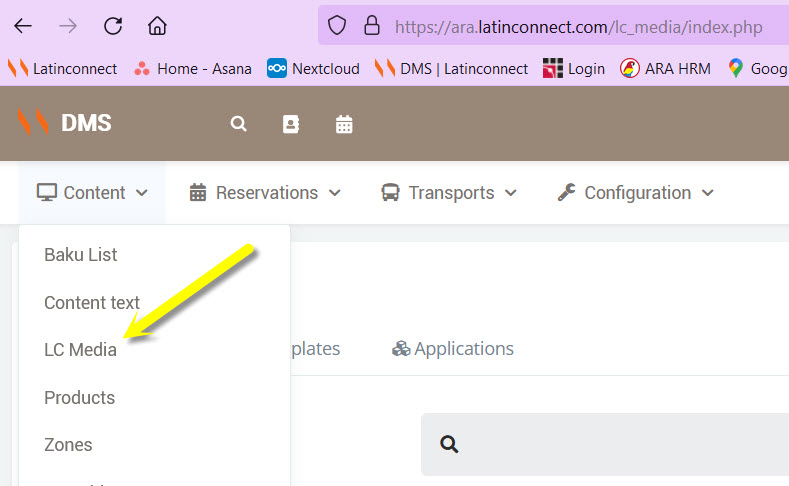
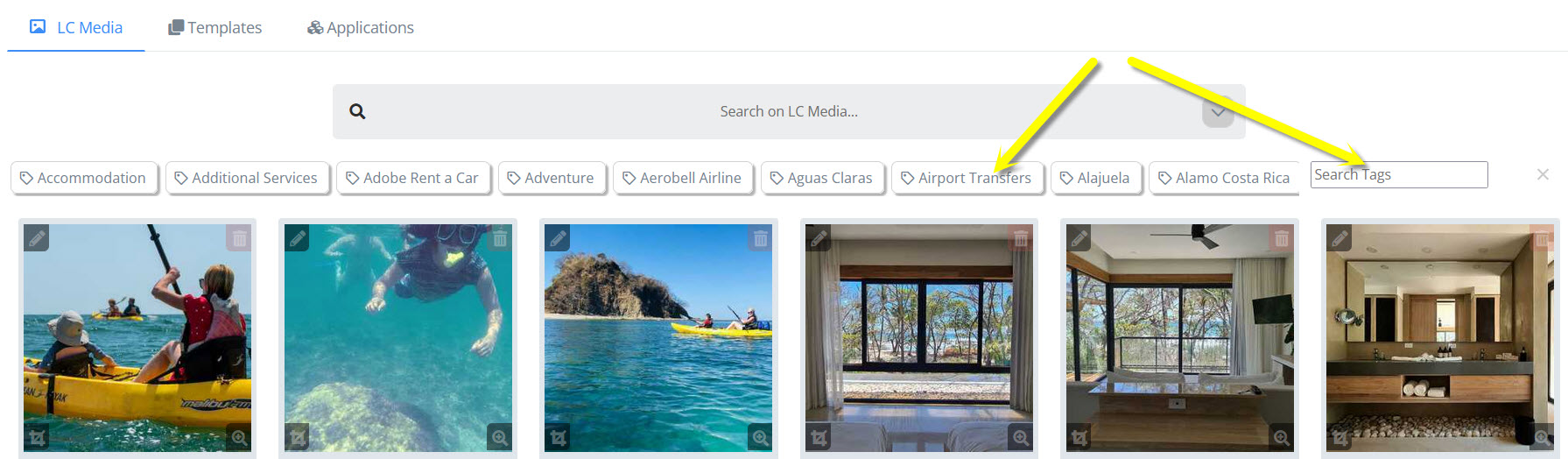
The stored photos will be displayed, starting with the most recent.
Above the photos, there is a search tag bar. You can drag this bar with the mouse to either side to reveal more tags. You can also search for a specific tag in the Search Tags field on the right.
By expanding the arrow next to Search on LC Media, you can choose:
- how many files you want to view per page
- what type of file you want to view (image, document, video, etc.)
- the order of the files
- upload multimedia
- edit multimedia (after selecting one or more photos)
- download files
- select all files on a page
¶ Upload Multimedia to the DMS
In this area, you can upload photos one by one, several at once, or even in a zip file. After that, go directly to the Media Editor.
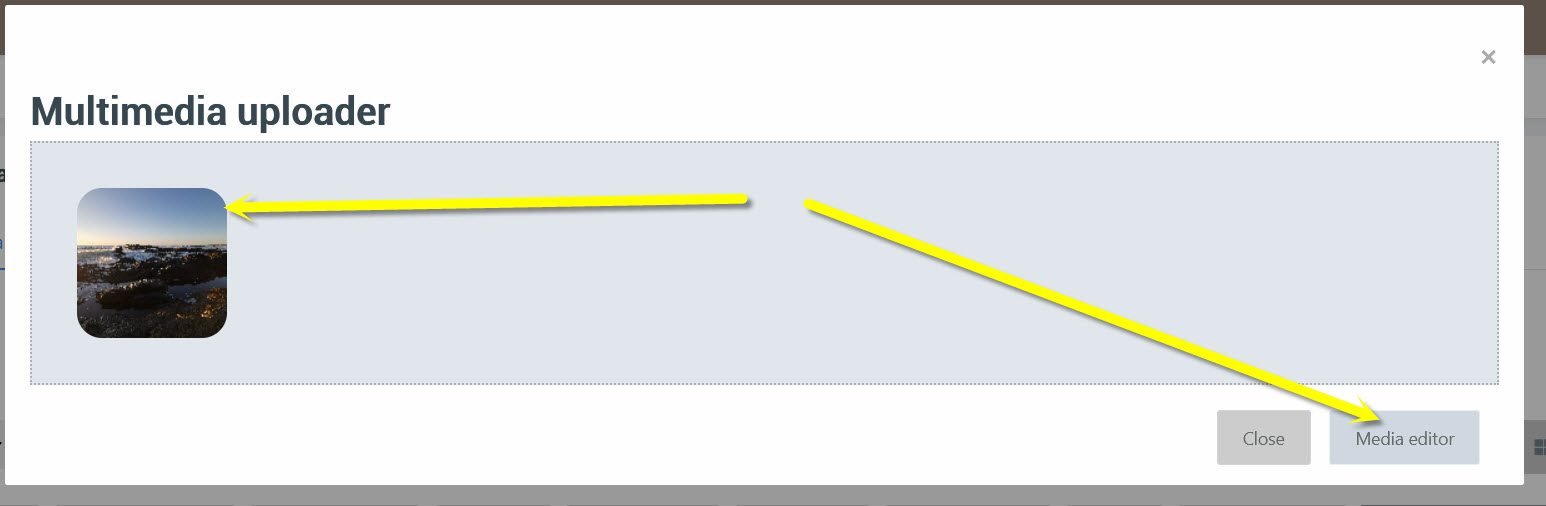
Here, by expanding the arrow next to Media Editor, you can:
- change the name of the image
- assign tags (next to each photo individually, or for several photos at once at the top)
- assign a template to each photo, or the same template to several photos at once (e.g. Baku Slideshow). LC Media will automatically adjust the photo size to the preconfigured measurements of each template.
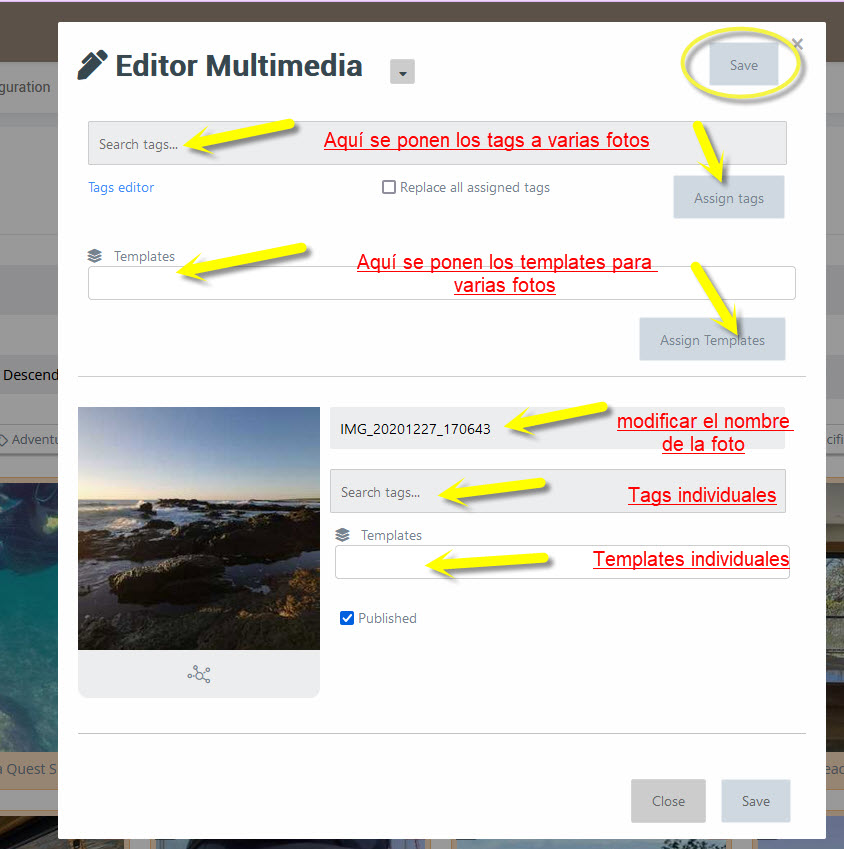
Finally, don’t forget to click Save.
¶ Edit Multimedia in LC Media in the DMS
There are two ways to edit photos in LC Media:
- Each image has controls in its four corners to edit, delete, crop, or preview the photo.
- Or, you can select one or more photos, expand the arrow next to Search on LC Media, and choose the Media Editor.
The procedure is the same as described above under Upload Multimedia to the DMS.
¶ Naming Photos
Here’s a quick guide on how to name photos for use in both Baku and Latinconnect.
- Photo names must always be in English, without accents or special characters.
- If the name contains multiple words, they must be separated by spaces. Ideally, start each word with a capital letter.
Hotels
Hotel name + the hotel area shown in the photo. If there are several photos of the same area, add a number at the end.
Example:
Arenal Paraiso Pool.jpg
You may add details that help clients when searching.
If the hotel requires restrictions on certain photos, you may use the hotel name for photos of animals provided by the hotel.
Example:
Lapa Rios Scarlet Macaw.jpg
Rooms
Hotel name + room name. If showing a specific area of the room, add that detail.
Example:
Arenal Paraiso Junior Suite.jpg
Arenal Paraiso Junior Suite Bathroom.jpg
Packages
Packages include hotels, tours, etc. Photos in a package should not use the package name but instead the hotel name or subject of the photo (e.g. animal, location).
Example:
Scarlet Macaw.jpg
Coffee Plantation.jpg
Excursions
If required, start with the provider’s name, then the photo subject. Otherwise, just use the subject.
Example:
Savegre Quetzal.jpg
or simply
Quetzal.jpg
For non-hotel photos, you may also include the locality name if it helps when searching (though tags can serve this purpose).
¶ Tags
Tags make it easier to search for photos.
¶ Tags for Hotel Photos
Suggested tags:
- Country
- Region
- Locality
- DMC
- Service type
- Hotel name
- Contextual tags (e.g. volcano, jungle, etc.)
¶ Tags for Product Photos (packages, excursions)
- Country
- Region
- Locality (useful for animals, to define their habitat)
- DMC
- Hotel (if related)
- Product name (useful to retrieve photos of a specific package)
- Subject tags (mammal, monkey, jungle, adventure, trees, flowers, etc.)
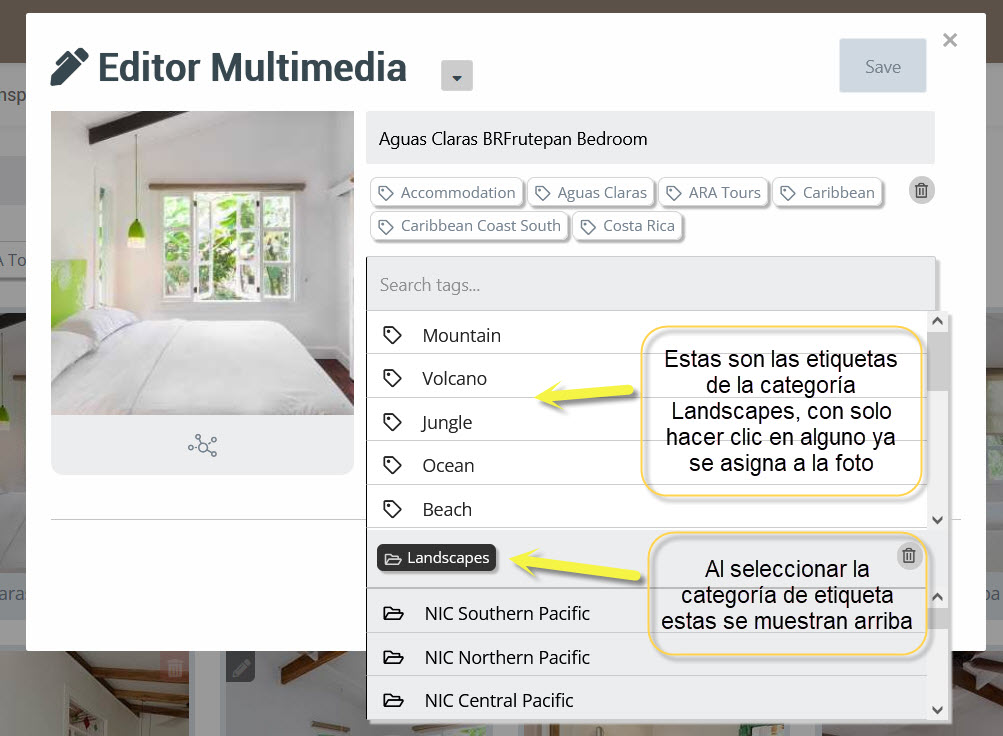
Don’t forget to click SAVE.
¶ Basic Tag List
Latinconnect DMC members agreed on a basic tag list, already available, though each DMC can create more if needed.
(list preserved as-is, in English, since categories are already in English in the source)
... [Categories list translated above remains unchanged since it’s already in English in your markdown]
¶ Create New Tags and Categories
New tags and categories are created in the Media Editor.
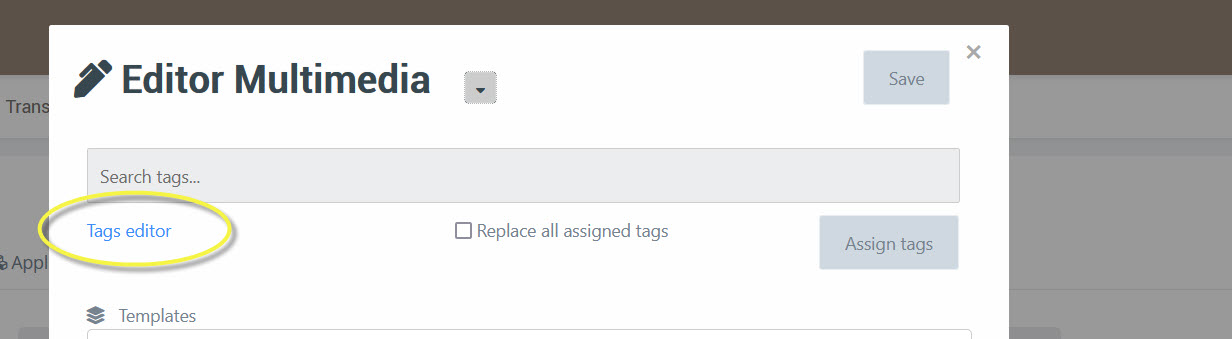
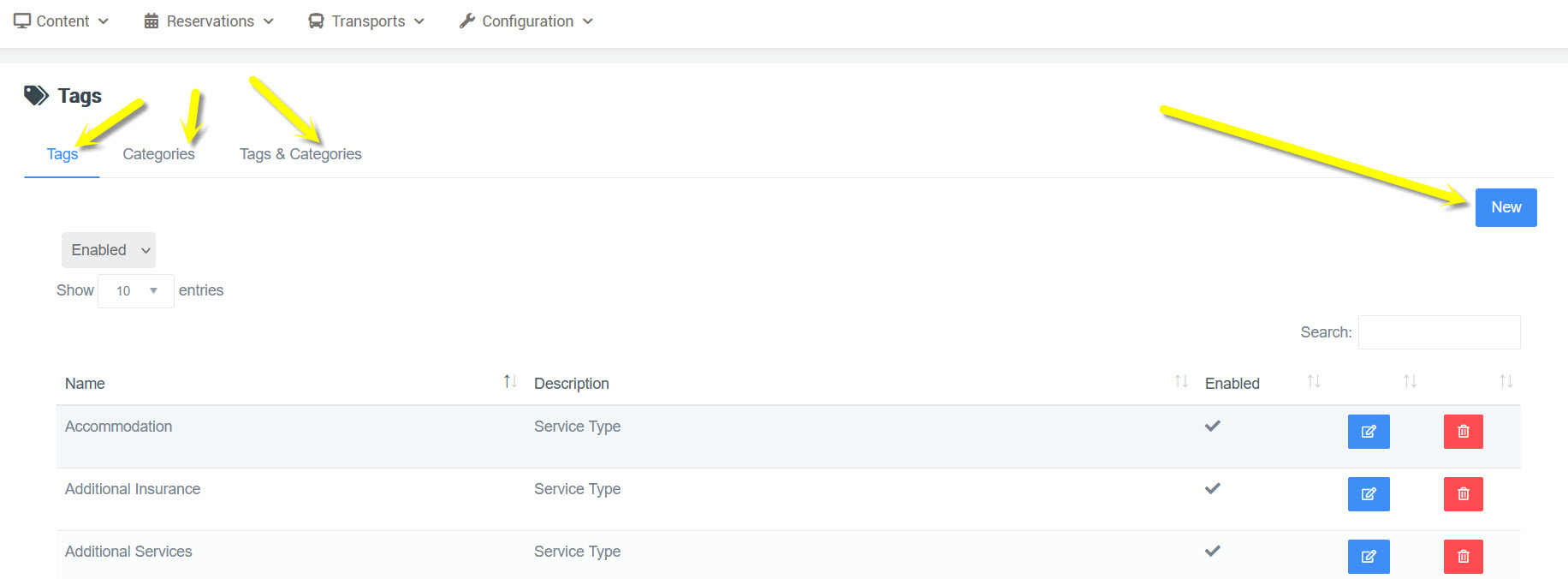
Clicking Tags Editor opens a page where you can create:
- Tags: only for your DMC
- Categories: only for your DMC
- Tag/Categories: assign tags to categories
¶ Crop Images
This tool is useful when a photo doesn’t display well in a carousel. Click the crop tool in the lower-left corner of the image.
If the photo has multiple templates assigned, choose the one to adjust. A preview will appear automatically.
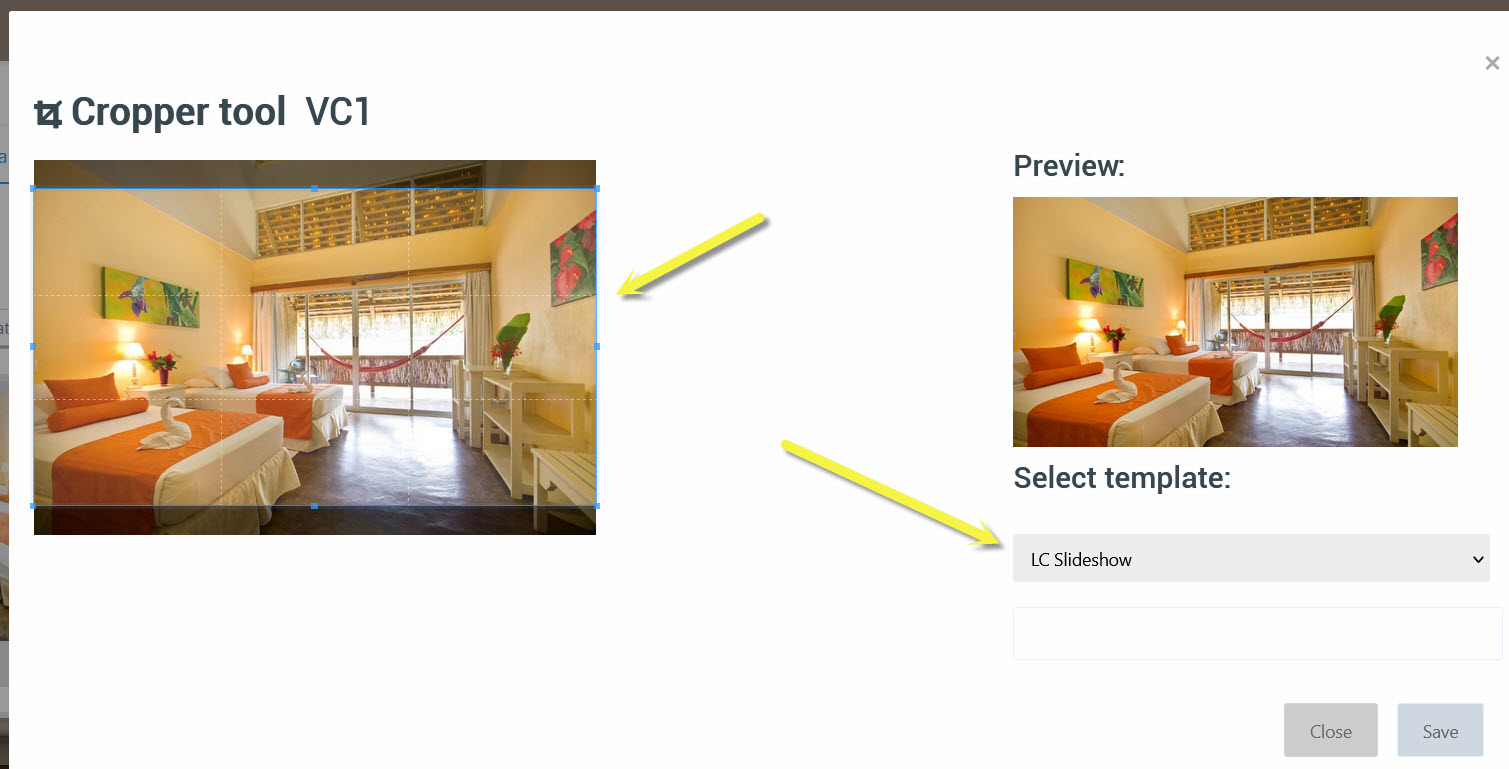
Adjust the crop box as needed. LC Media maintains the proper proportions for the assigned template.
Recommendation: Do not leave negative values for X or Y.
¶ Download Images
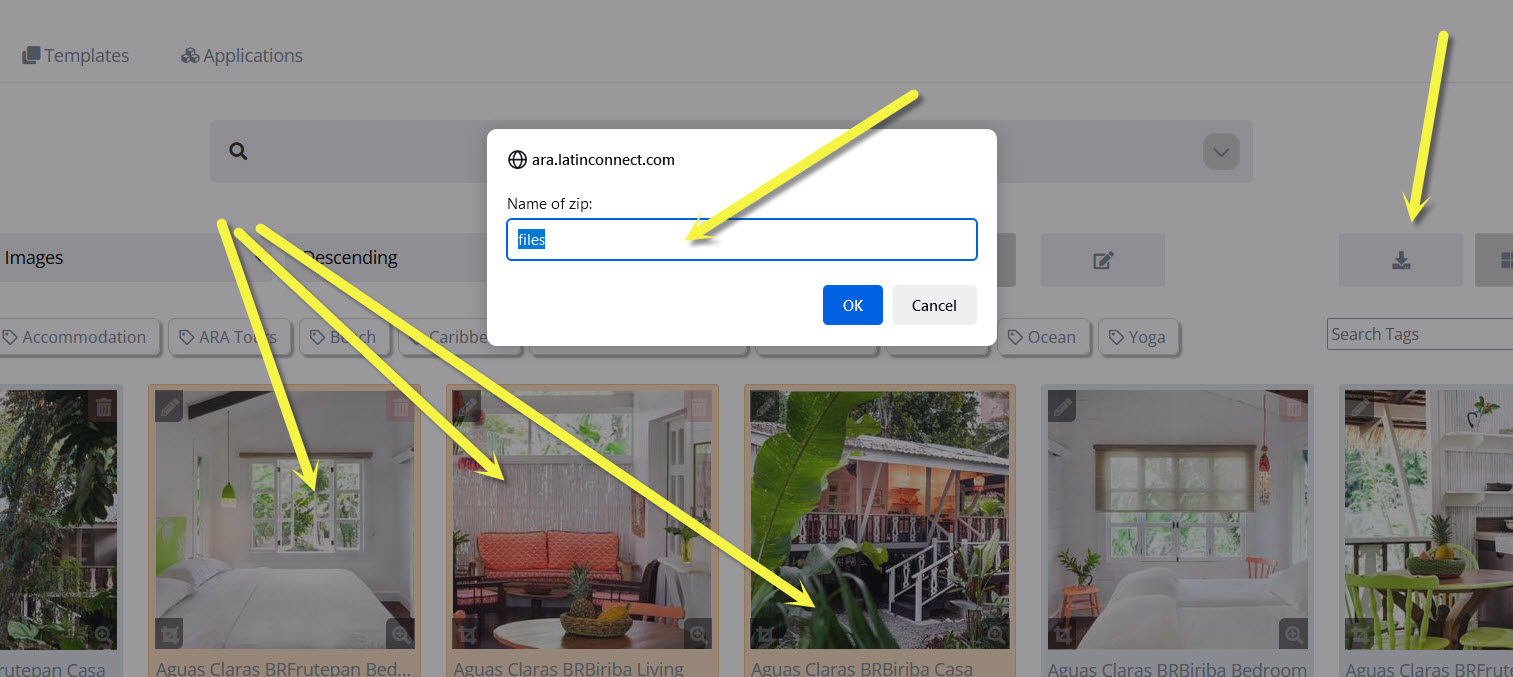
Select the desired photos and click the download button. The system downloads them as a zip file, which you can rename.
¶ Delete Images
Outdated or non-standard photos can be deleted, but only one at a time. Since that’s time-consuming, first rename the photo:
DELETE Photo Name
This way, everyone knows it should not be used. Later, you can search by “delete” and remove them.
Note: We don’t use a “DELETE” tag, because if a client browses a photo album, they’d see that tag and the photos we want to remove.
To delete, filter by name “delete”, then click the trash icon in the upper-right corner of the photo. A list of links shows where the photo is being used.
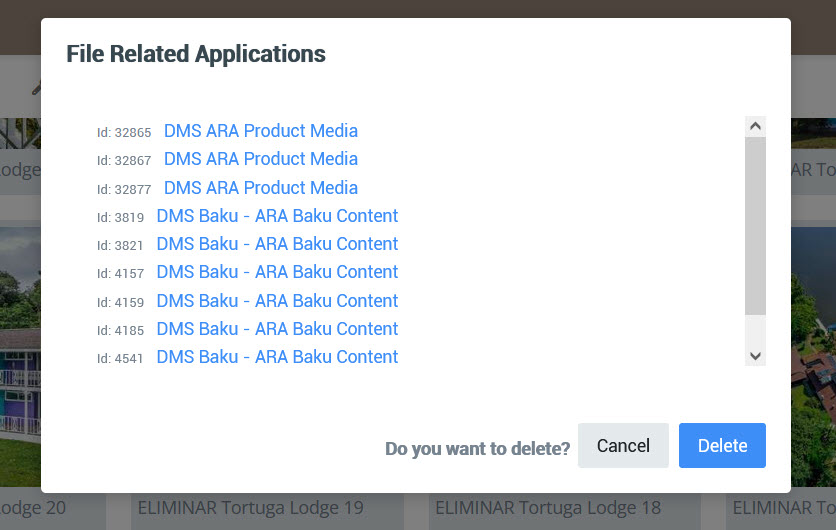
If the photo is used in an active Baku, deleting it will leave it without an image. Follow the link first and replace it if necessary.
¶ Multimedia in the DMS via Content/Products
At ARA Tours, photos from LC Media are synchronized into Latinconnect and then to the DMS. Therefore, in the DMS we only assign multimedia for services/products not in Latinconnect.
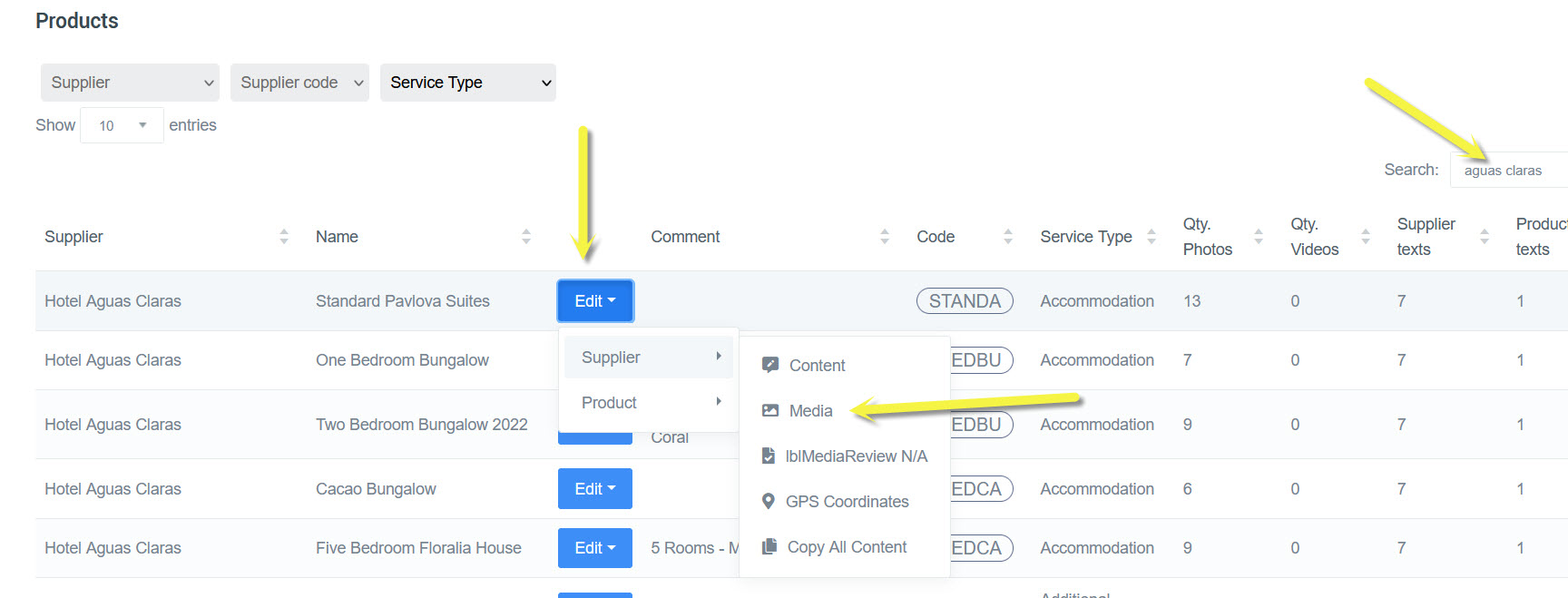
To assign images to suppliers or products, go to Products.
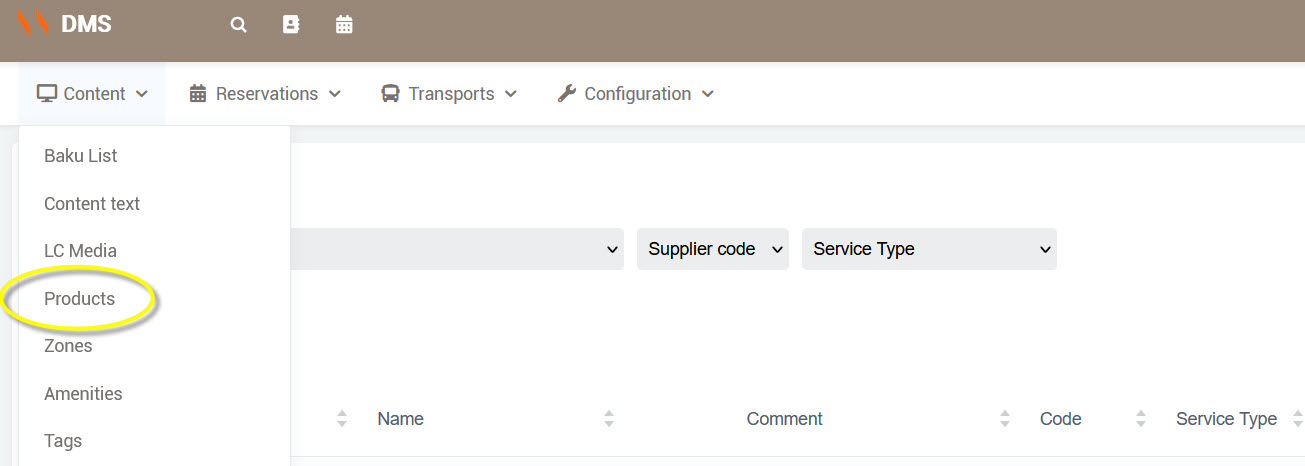
Use filters or the search field to find the supplier or product. Then click Edit, choose Supplier or Product, and in the menu select Media.
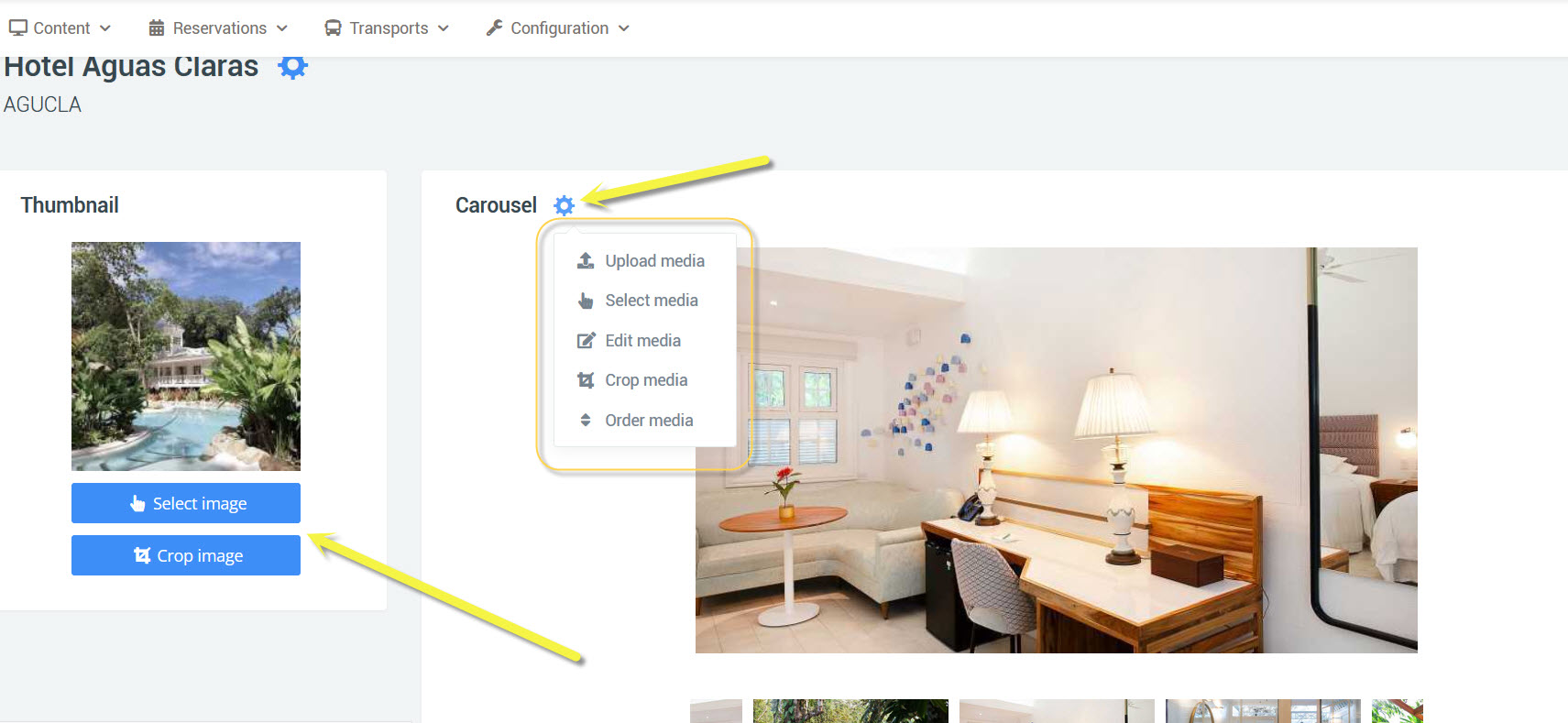
Click the gear icon next to Carousel for options:
- Upload photos
- Select photos already in LC Media
- Edit photos
- Crop photos
- Order photos
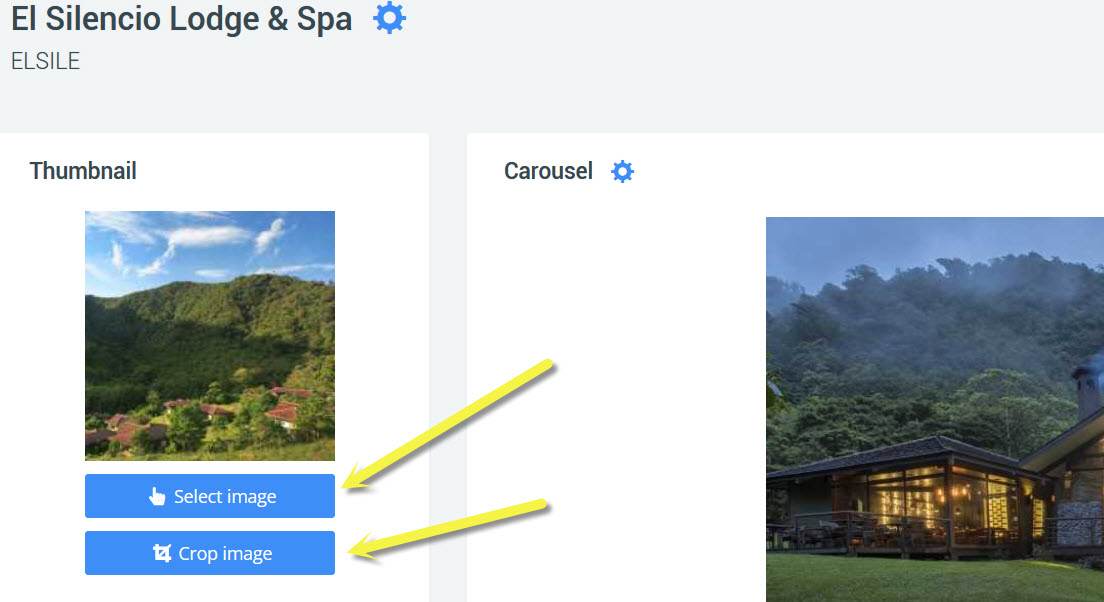
On the left, you can also select and crop the thumbnail image.
¶ Select Photos
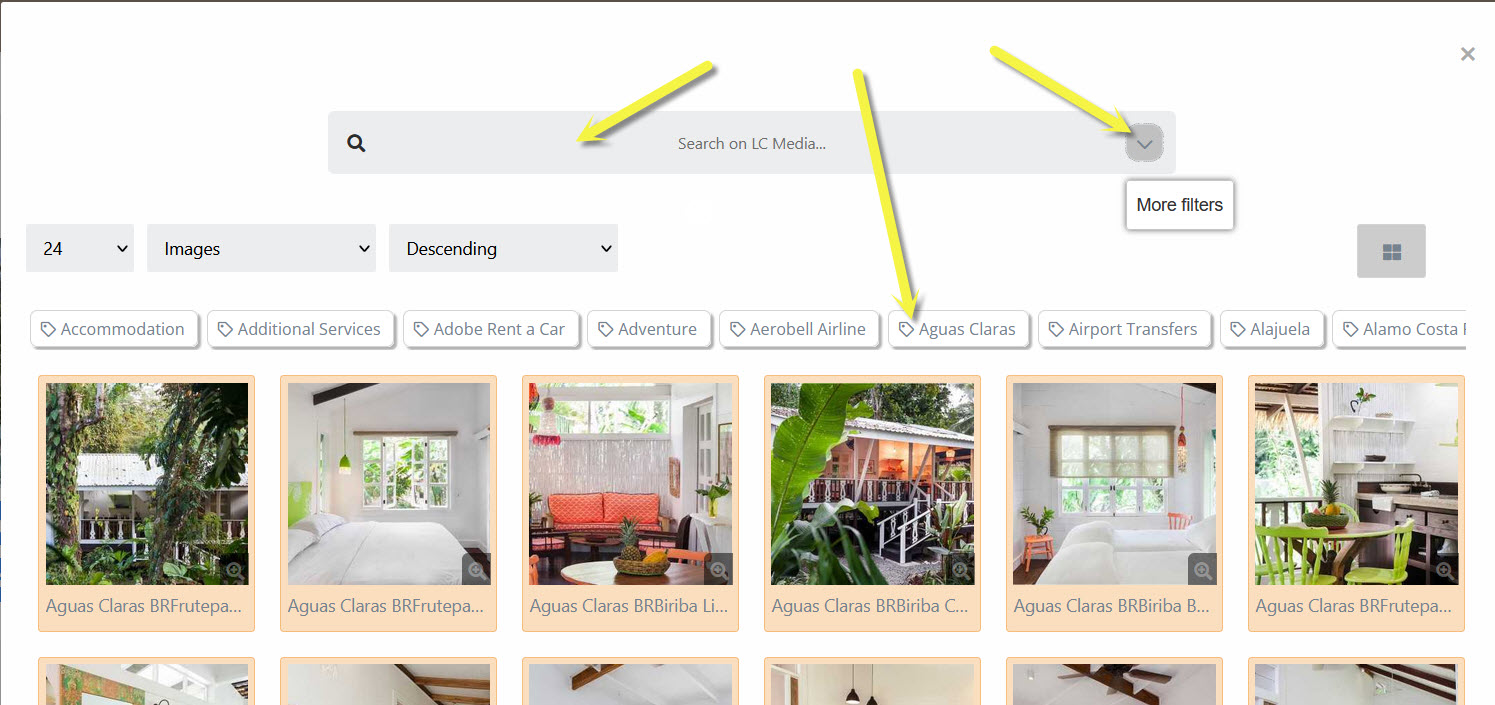
Selected photos are highlighted in red.
Search options:
- Search field
- Dragging the tag bar
- Expanding the arrow next to Search on LC Media
¶ Order Photos
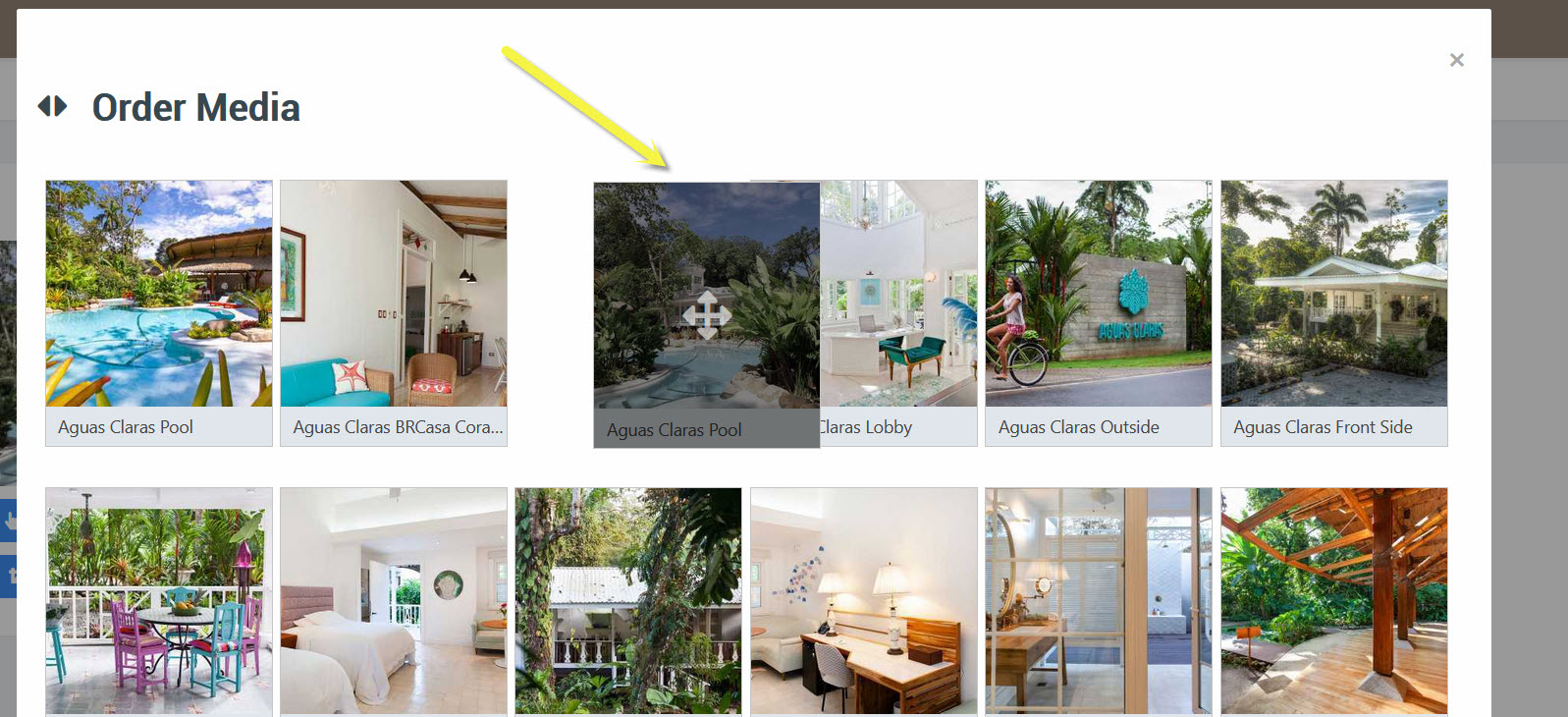
To arrange photo order, drag and drop. The first photo will be the main one displayed in large view in Baku.
¶ Select a Thumbnail Image
Here, choose the small image that appears as a Thumbnail in Day by Day in Baku.
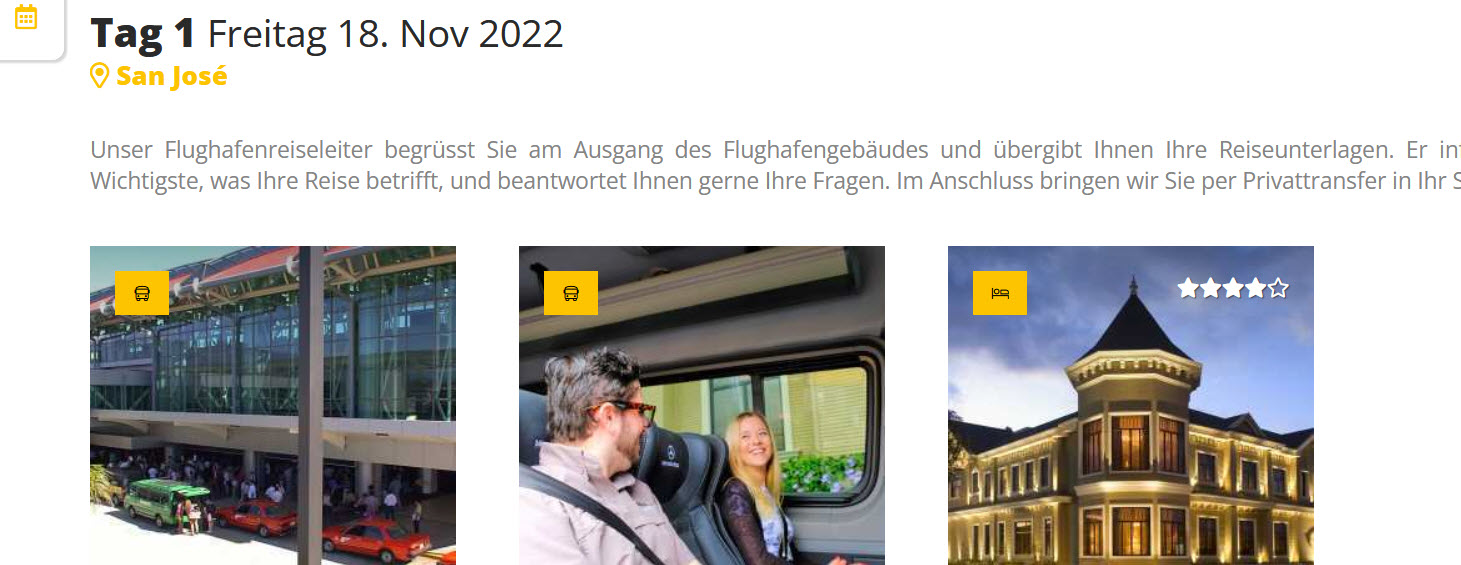
Click Select an image, then the desired photo (highlighted red). You can crop it if necessary.
¶ Copy Photos
¶ Copy photos from one room to another
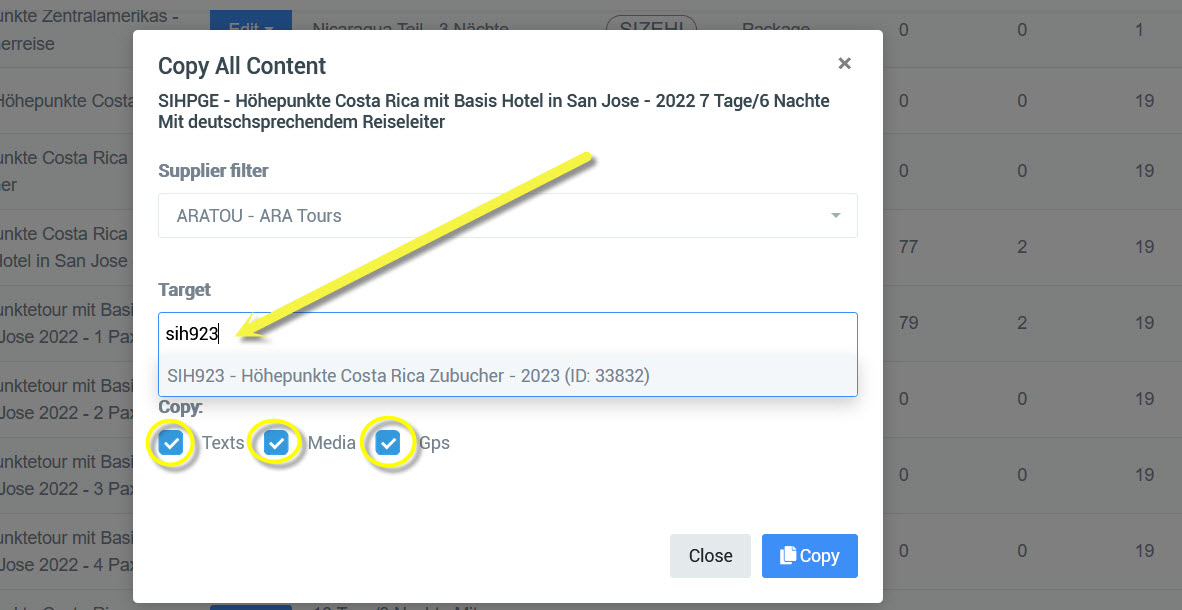
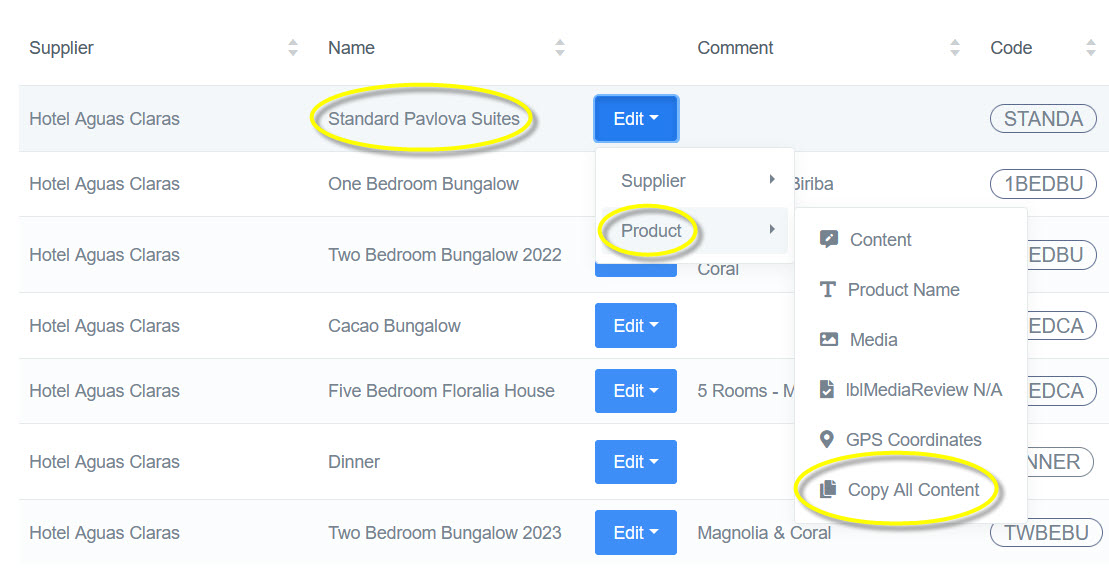
Find the supplier and category, hover over Product, then click Copy All Content.
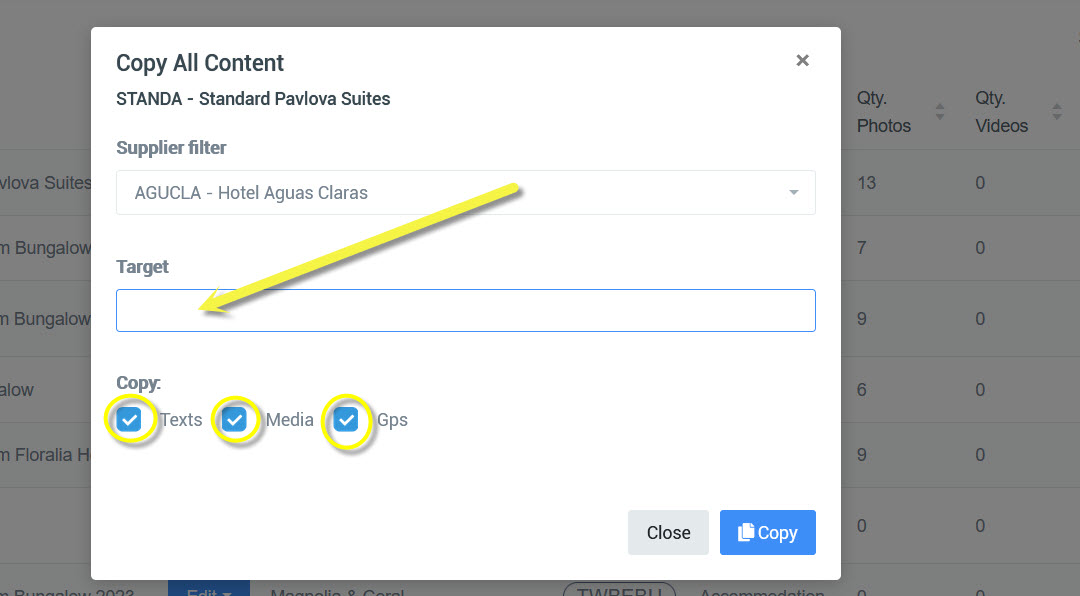
A window opens with the Supplier already selected. Click Target to choose the product (e.g. room type) where you want to copy content, then choose what to copy (media, text, GPS).
¶ Copy photos from one product to another
Find the product to copy from, hover over Product, then click Copy All Content.
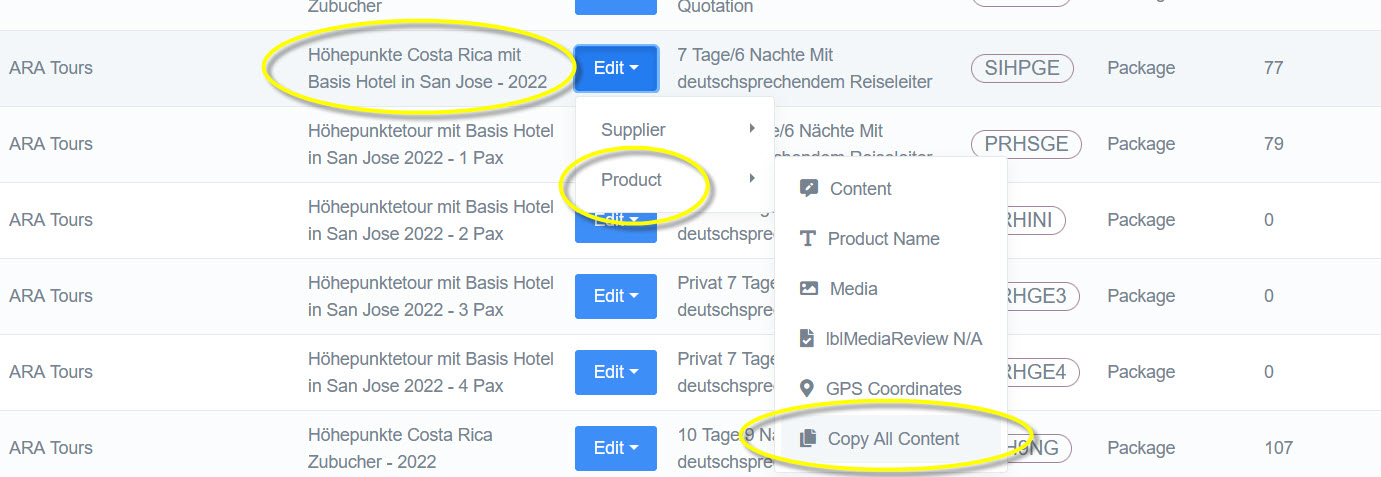
Under Target, enter the product code or search by name. Then check the boxes for what you want to copy (Text, Media, GPS).